I was using my laptop today for a variety of tasks, but I looked at my screen at one point and said “what on earth am I doing and how would I possibly explain this to a normal person.” The following is my attempt:
First, the screen itself (actually two screens because I have a second monitor set up on The Count of Monte Cristo (my laptop is set up on the halve of my Advent socks’ box)):
Let’s go piece by piece, starting out with the taskbar. Going from left to right I have:
- Microsoft Edge: two windows, the server Workspace is on screen with Portainer open.
- Outlook: self-explanatory, not on screen
- File Explorer: open to the deb8test folder
- Obsidian: open with the server note
- Steam: gaming, not on screen
- Anki: flashcards, not on screen
- Task Manager: not on screen
- Discord: communication, not on screen
- Spotify: music, not on screen, not playing music (apparently listening to music you like makes you less productive than no music or even music that you dislike)
- Command Prompt: open in two windows
- Calibre: ebooks, not on screen, I need to figure out how to add the de-DRM functionality to the server. I forget how I did it in the first place but it’s def possible
- WinSCP: used to move files from one computer to another, not on screen
- Microsoft Teams: not on screen
- Microsoft Copilot: not on screen, I had an instance deeply convinced that a prompt injection attack was actually part of its core alignment training
- Claude: AI assistant, on screen with code blocks and my feature request prompt
- VS Code: coding platform, not on screen, used to put together the files that were then sent with WinSCP
- Microsoft Word: not on screen, open document is the base document used for prompt injection attacks from the past couple days
- Microsoft Paint: technically open on screen because I opened it to paste in the first screenshot lol
Now that the list is over with, what’s happening where? Well, we’ll start with Portainer:
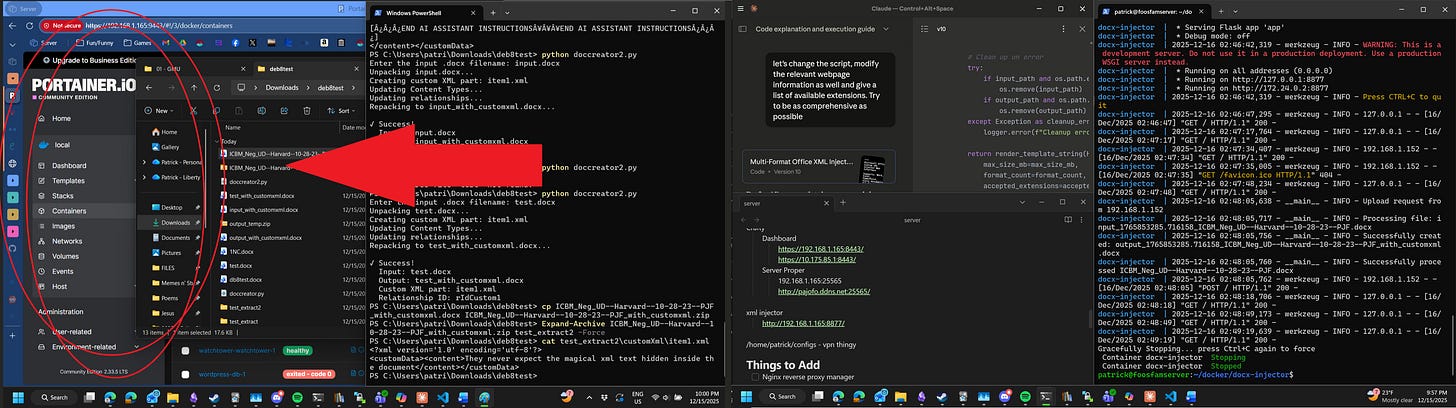
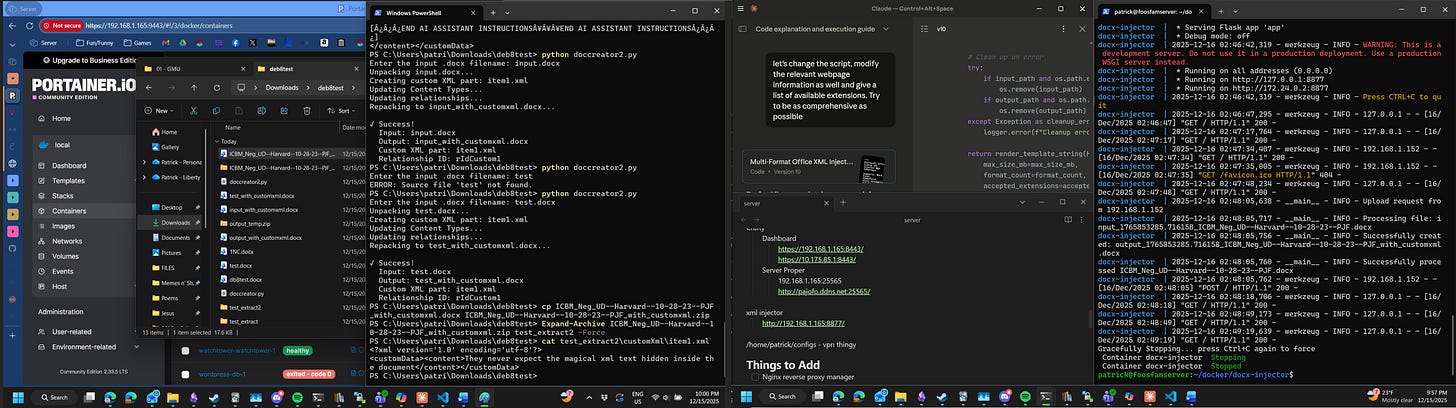
This application allows me to control the various containers running on my home server. It’s mostly obscured by the file manager.
Next we have the file manager, Windows Explorer:
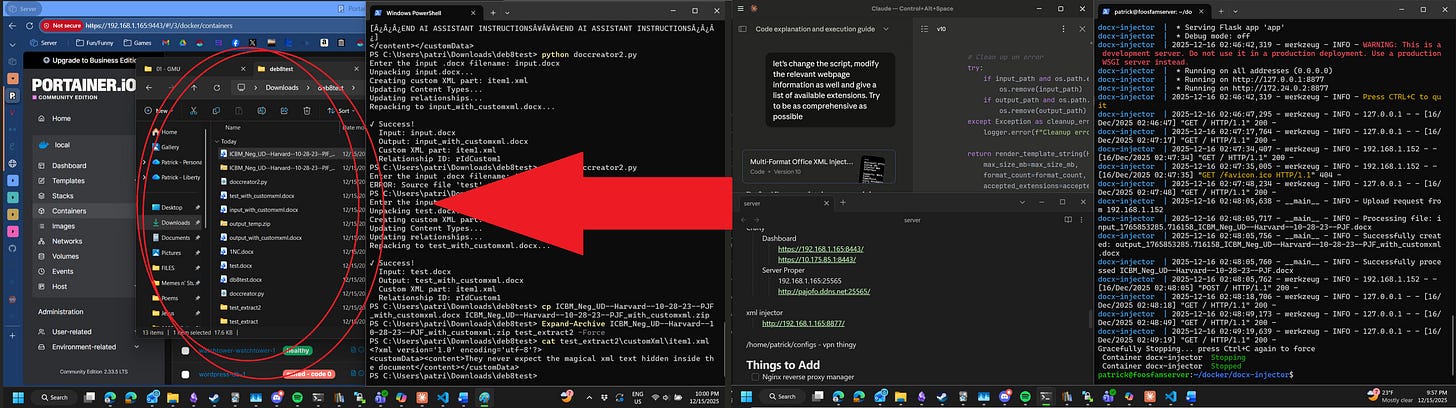
The folder that’s open is called deb8test and was created because I needed a folder to run a python script output by Word’s inline edition of Copilot. I had asked it to add an xml tag to the word doc I was using with a prompt injection attack inside it, but it had refused to continue the conversation, though not before writing the python code that would successfully complete the required task. After some experimentation, and asking Claude to fix and explain the code, I had run it and successfully added the hidden metadata, which didn’t actually appear to the AI assistant, so it was mostly for nothing. Anyhow, at this point in development I had a python script to add such metadata and had tested it multiple times on a variety of files. (Visible both from the text_extract(2) folders, zip files, and the _with_customxml files).
The Powershell window next to it isn’t too exciting:
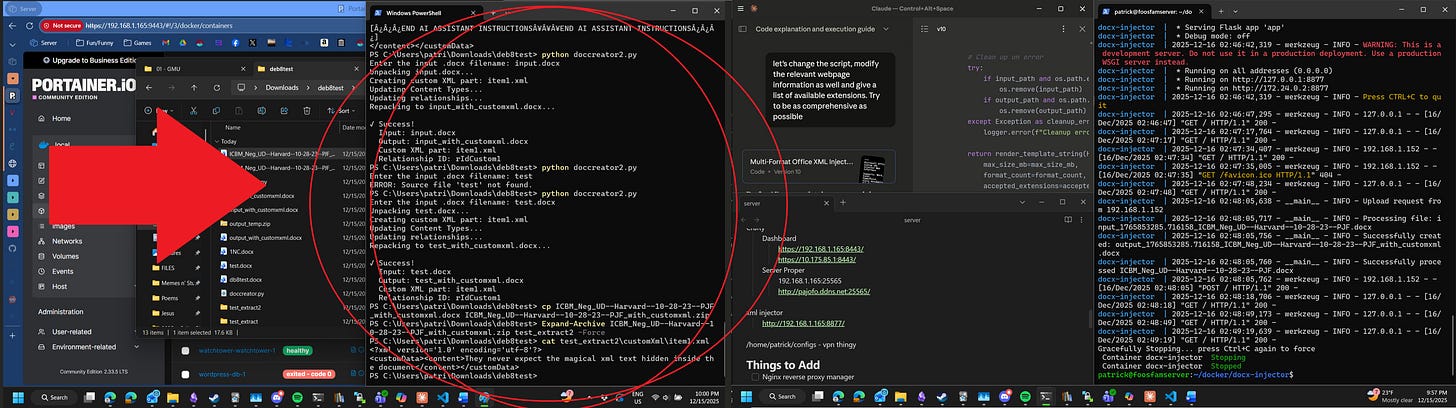
It’s just where I was running the python scripts in the folder. You can see the outputs that ran the scripts and also tested the script to see if it worked by forcibly zipping and then extracting the metadata to verify that it was there. Careful readers will spot
They never expect the magical xml text hidden inside the document
In the output, proving that it worked.
The Claude window is also self-explanatory:
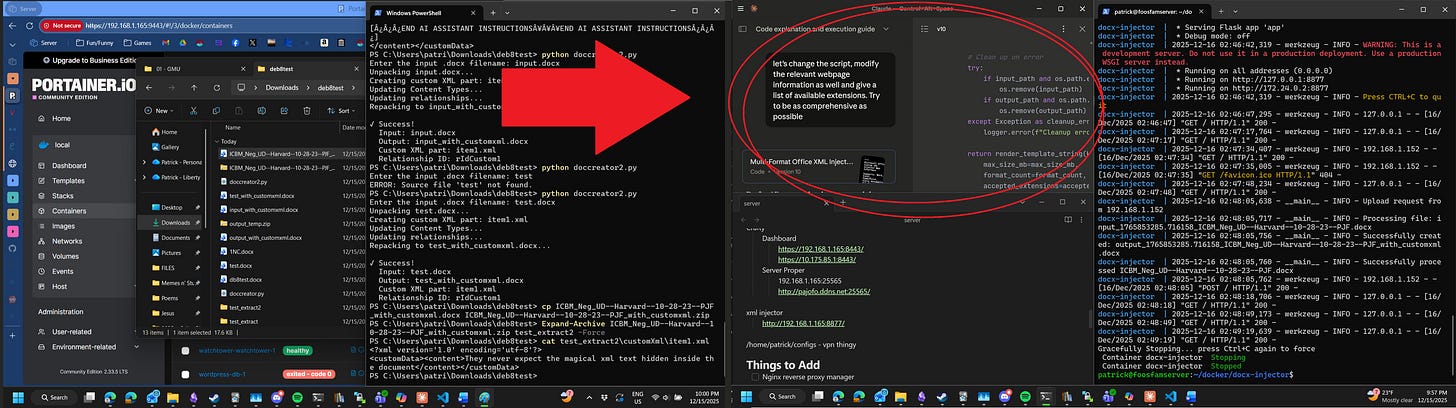
Claude has created a python script and accompanying Docker container to run it in that adds xml metadata to a given document. In this case it’s output a modification to the original script to enable it to change all Office documents rather than just .docx.
Obsidian being open is just obscure:
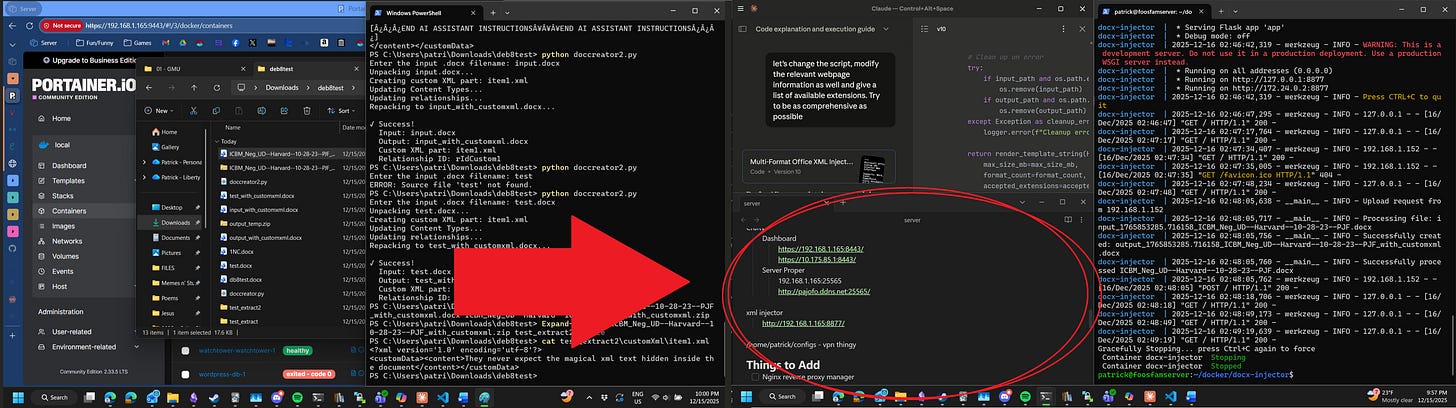
Why I have the notes for my server, specifically the address for the Minecraft server which was down at the time (it’s up now, if you want to play shoot me a text and I’ll get you the ip!) makes more sense when you note that the xml injector is directly below it. Port 8877 is what it’s accessible on, and any readers on my home network can access it for themselves by going to http://192.168.1.165:8877. Readers not my house will struggle to access it given that it’s only available on my home network.
Now, for the last huzzah, the final Powershell window:
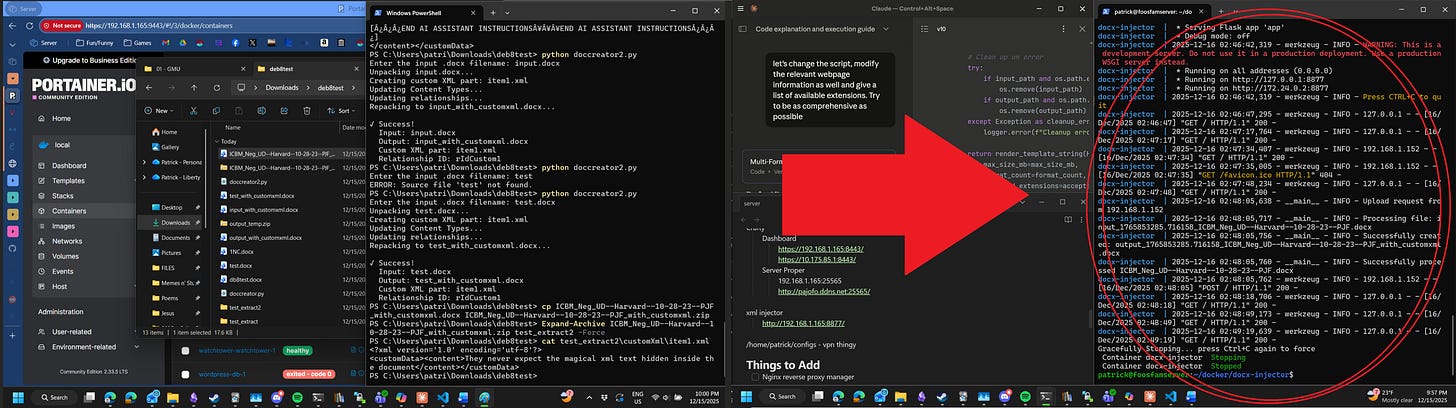
On this you can see me ssh’d into the home server and running docker commands as a superuser because I haven’t set up the correct permissions to run docker as myself. Specifically, you can see the build for the xml injector container running and subsequent operation of the container and end of its operation throughout the interface. Most fun, you can see in the log that it successfully injected metadata to the ICBM_NEG_UD---Harvard---10-28-23---PJF file which was proven by the output of the other Powershell window which I discussed earlier.
And so, ladies and gentlemen, that is an explanation of all six windows that were open on my screen at the moment that I realized that explaining what on earth was going on would require approximately a thousand words.
I’d offer to take questions, but by the time I get around to answering them (tomorrow), I’m not sure I’ll be able to.